

Out of early access, with a new design
Organisers have been running their events on Hubbaly through early access, and this release brings together what those nights have taught us. Hubbaly now leaves early access: the label comes off the site, and every page, ticket and email takes on Hubbaly’s new design and brand.
- New colours and type, the Hubbaly word drawn flat, and calmer pages with fewer lines and boxes, so what matters on each screen stands out.
- On a first visit Hubbaly opens in your phone’s own light or dark setting. A Theme chosen in Account still wins.
- Buttons, headings and labels use the same plain words everywhere, and every time is written on the 24-hour clock in London time, such as Sat 17 Oct, 19:00.
- Emails take on the new design too. Hubbaly’s own emails open on the Hubbaly word and a hub’s emails on its banner, logo and name, with one wide button in the hub’s colour.
- A hub’s banner shows its logo, name and members straight on the picture, with a soft fade behind the words. Pale hub colours, white included, can now be chosen.
- On a computer the top bar shows the hub you are in, with a small switch beside it for your other hubs. On a phone the bottom bar marks the page you are on.
- Each kind of page has a width that suits it, and browser tabs name the page you are on.
- The whole app is built to meet WCAG 2.2 level AA for accessibility.

A door scanner built around a clean experience
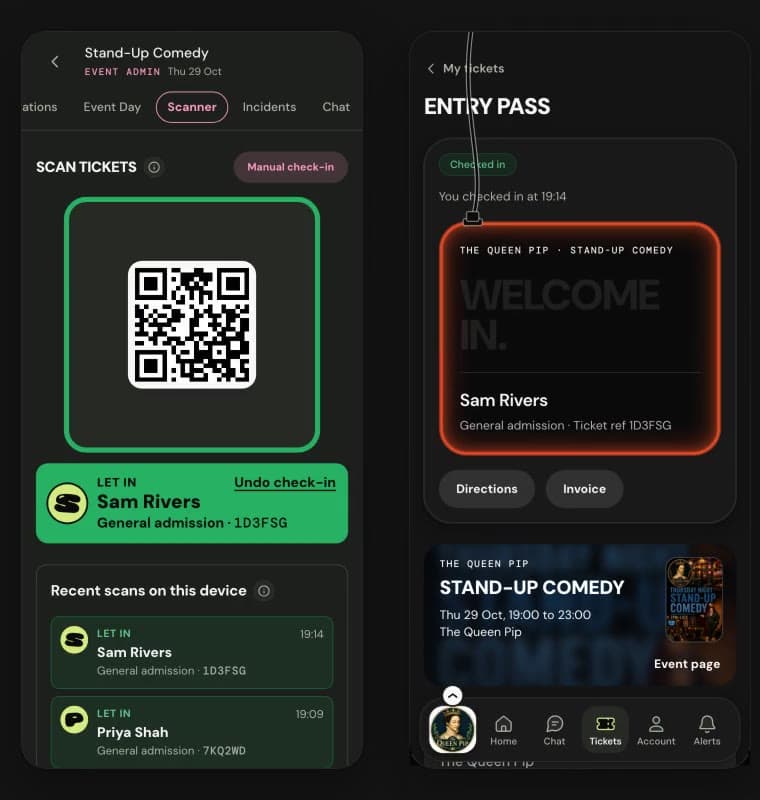
- The scanner opens on the camera. Each result fills the screen in clear colours and words, with the person’s picture and their ticket, and a good ticket clears itself after two seconds so the next person can step up.
- An Already in warning helps staff stop two people using the same QR code. Only choose Let back in when satisfied it is the same person returning. Confirmed returns are noted with Undo, leaving the first arrival unchanged.
- Manual check-in is ready at once, and on a small phone the camera and search keep the whole screen.
- Event Day puts the door count and the people who have arrived at the top, with a short line saying what is ready.
- Incidents sits on one screen with plain figures. Reporting one lets you pick its time in London time, and on the night the clocks change it asks which of the two times you mean.

A celebration at every check-in, and a game in the queue
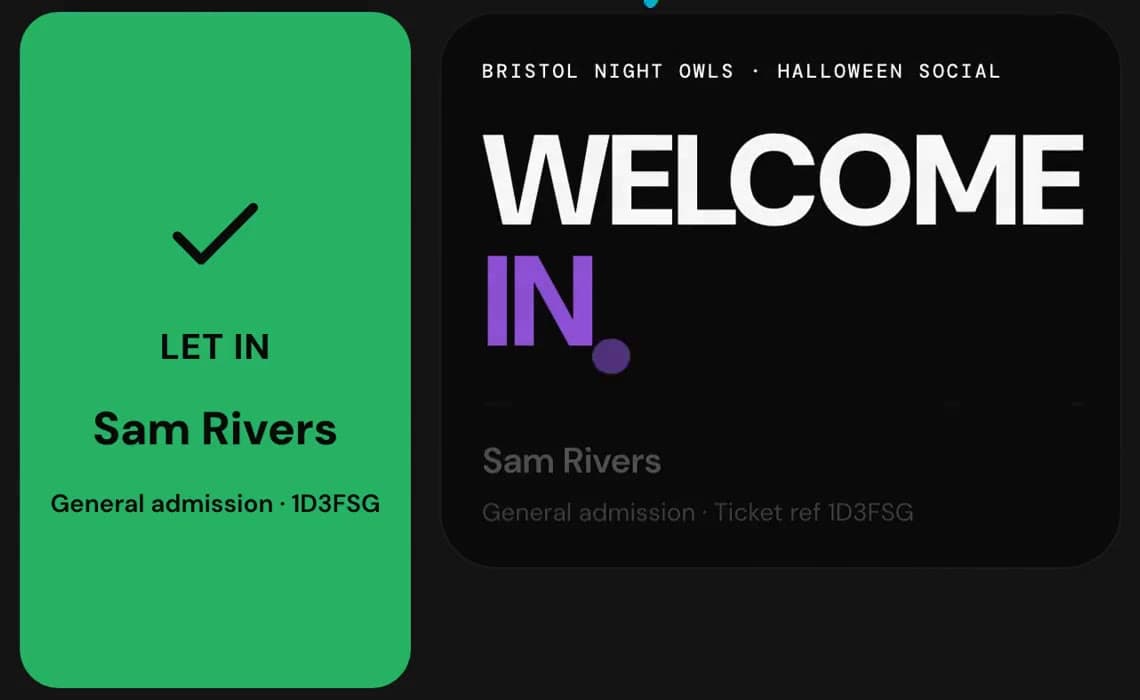
- When a check-in completes a ticket, a celebration leaves the door phone and lands on the guest’s ticket as it turns to Welcome in. There are ten, taking turns: four in neon (the H winks, light runs round the edge, the H is drawn in light, a sign flickers on), the stamp of the night, confetti that rains or builds a big H or a star, a firework, and the H travelling across.
- Both phones play the same one in the same colours, sometimes the hub’s own. Each event has its own stamp of the night, so the door gets to know tonight’s, and an event on 31 October gets a Halloween one.
- Door staff can turn the celebrations off on their phone with Celebrate each check-in, and a phone set to reduce motion shows the finished moment, still.
- On the day of the event, while a guest waits to be let in, a little Hubbaly H appears on their ticket. A tap opens a small game to pass the time in the queue, and it goes once they are checked in.
- The games: the pile, a heap of little H’s to pour, shake and sweep by tipping the phone; a steamed-up window to rub clear and see the event’s flyer; Stack, a tower to build as high as you can; and Tickle the H, who takes a stroke, a tickle and a tap each differently. Every ticket starts with the pile, and Hubbaly can give a hub one of the others.

Event shop: seen at the event, sent after
- A new way to deliver an Event shop item: At the event, then sent after. It suits things like a photo shoot, where the buyer comes to your stand on the night and you send the result later.
- Buyers get Your shop code, shown beside their ticket in My tickets, below the entry pass and on the event page.
- Your team scans the code, or finds the buyer by name, and marks them seen. A mistake can be undone with a reason, and the team can keep a private note on each order.
- The buyer’s phone celebrates the moment they are seen at your stand or their item is handed over.
- Shop in Event admin holds the Shop scanner, and people who hand out shop orders find Shop scanner on Home, straight under Scan, with the number of orders waiting at each event.
- The Shop scanner opens on the camera and remembers which items this phone hands out.
- Stock limits can be added, changed or removed after orders come in, and editing an item that is on sale keeps it on sale.
Simpler buying and clearer tickets
- Checkout lists the order once, in one Pay card with the total and the button together. On a computer it sits beside the tickets.
- Guest checkout has three clear steps: choose tickets, your details, then pay.
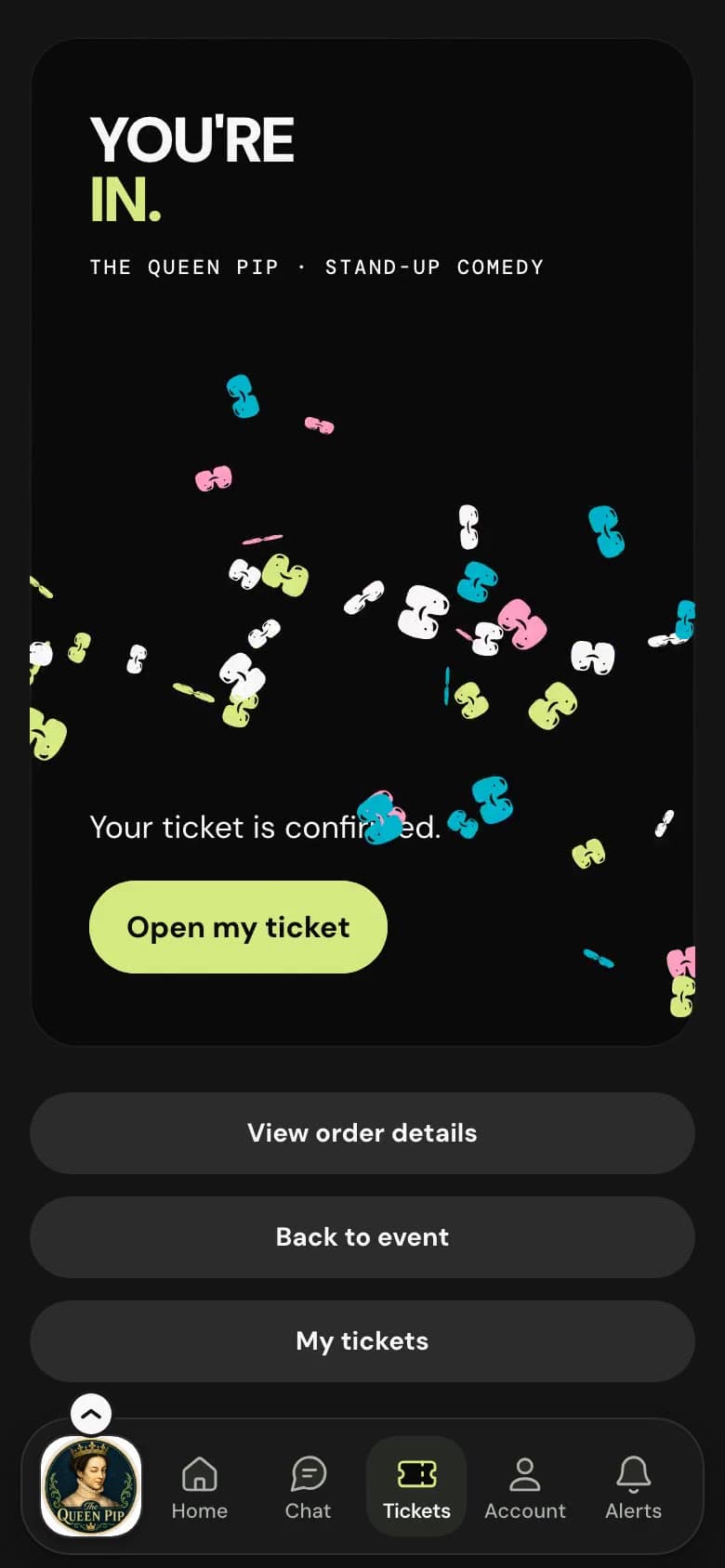
- After buying, a You’re in. page names the hub and the event, celebrates a first ticket with confetti, and asks first for any form still to sign on the tickets just bought.
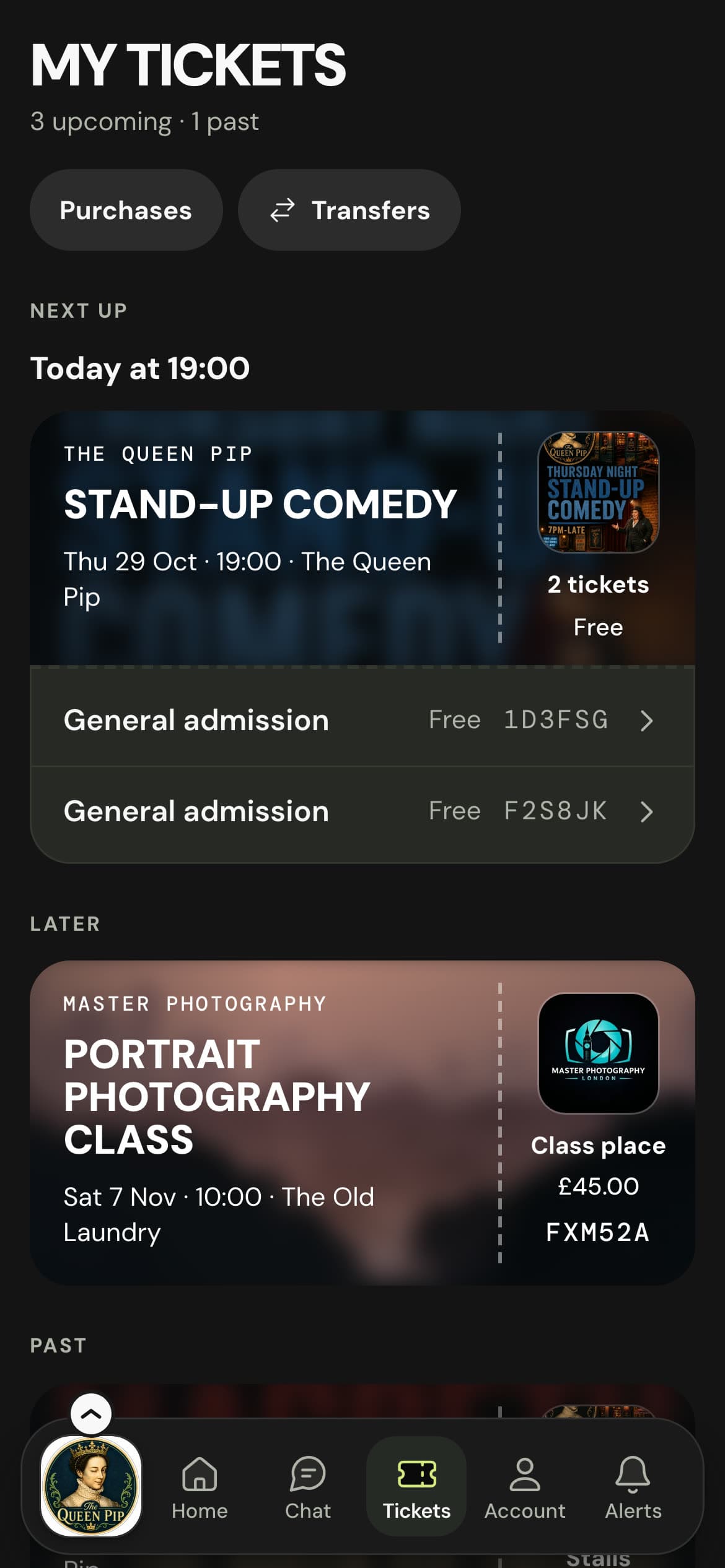
- My tickets shows each ticket as a card with its event’s flyer or banner, and an order of several tickets is one card.
- The entry pass says Show this at the door, with a reminder to turn the screen brightness up, and keeps its code full size.
- The ticket button says Get tickets when everything on offer is free, and Buy tickets otherwise.
- An event question that is not required is now asked of every buyer, who can leave it blank.
A clear start for new organisers
- A new hub starts from a short Create hub form that asks Who can join?, then a Getting started list on the hub’s dashboard.
- Creating a ticketed event opens Tickets with Draft saved., and publishing your first event says It’s on. with the link ready to copy or a way to invite people.
- A page with nothing on it yet says what is missing and offers the next step, and Sales marks your first ticket sold.
- What’s this? explains the terms on Tickets, Waitlist and returns and Staff, and a private hub’s invite link shows the hub before people sign in.
Running your hub
- Hub Settings has four tabs, Hub profile, Joining, Payments and Defaults, with every section open, one bar to save your changes, and tabs that stay at the top as you scroll.
- Hub admin pages are clearer: People, Email, Trust and safety, Finance and Insights use plain lists and words, and figures fill their panel.
- Manage in Stripe opens the Stripe account linked to this hub.
- Managers can publish, schedule and archive events and handle sales and refunds, without an extra staff permission.
- The finance digest email says in its subject whether it is daily, weekday or weekly, and starts on weekly until you choose otherwise.
Running your event
- Event admin’s menu is grouped into Before, On the day and After, and a path at the top shows where you are, such as Sales • Orders • Order details.
- Every Event admin page shares one head, with a plain introduction and its main action on the right, and pages switch between their parts with tabs that stay at the top as you scroll.
- Waitlist and returns is one page: the waitlist in order, held tickets with the time left to buy, each returned ticket’s steps and refund, and a plain history of what has happened.
- A guest signing an event’s forms answers the form’s own questions and types their name, and you see those answers just as you see a member’s. Their signed copy shows their name and when they signed.

Chat and other improvements
- Chat is more reliable on a weak connection, a tapped search result goes straight to its message, and the arrow to newer messages shows a dot when new ones are waiting.
- Alerts are listed newest first under Today, Yesterday and Earlier.
- The editor’s toolbar is easier to use on a phone, and a pasted link stays a link.
- New members get a welcome on the hub’s page.