



Staff
Manage your event and your staff from your hub
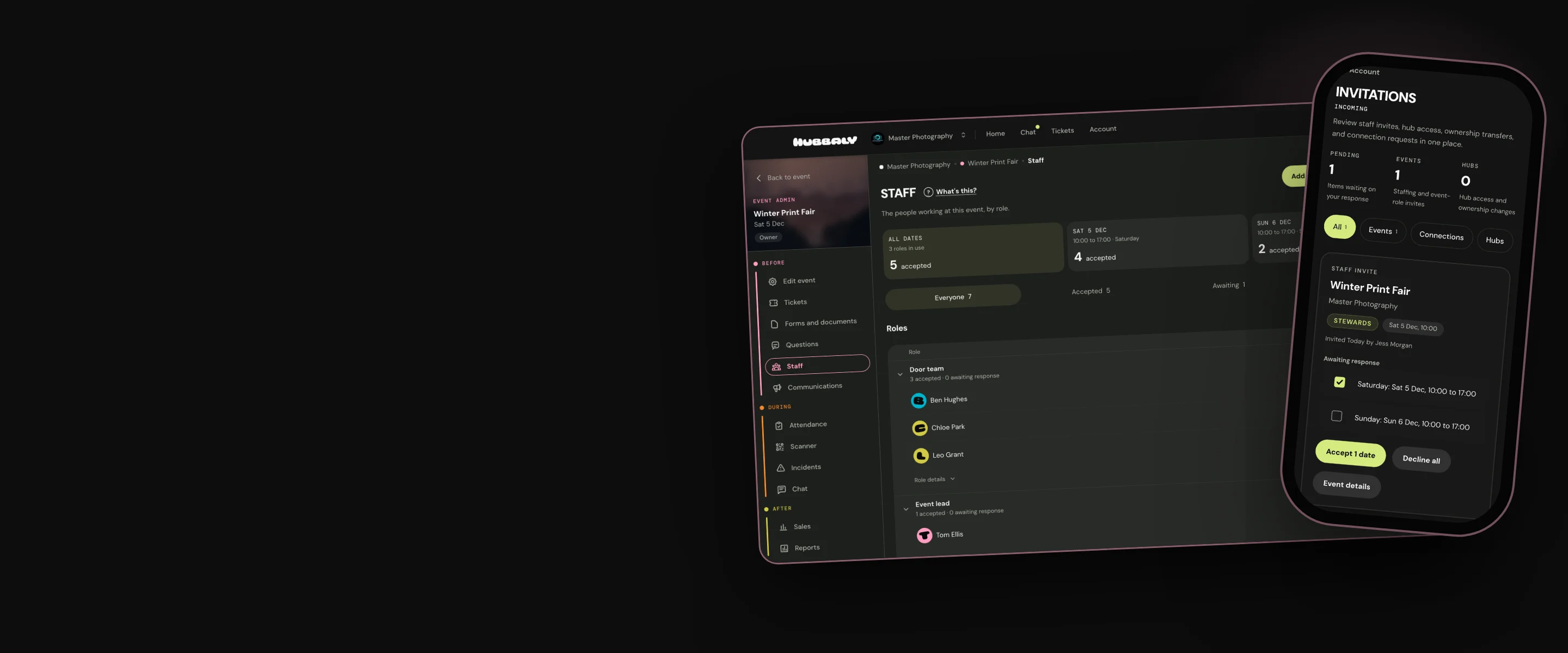
Set event staff roles and permissions, create your chat channels and track your staff acceptance and arrivals all from your hub.
Run your event team from one place
When managing events from multiple systems, communicating with staff, and setting their permissions to scanners, attendee lists and event data can be disjointed and time consuming. Then on the day, if someone doesn’t show, all your staffing plans can be difficult to adapt.
Managing your staff on Hubbaly means that the tools your staff use know the parameters of the event. You can create specific roles, with permissions to the tools, and access to the information they need to do their jobs. Shifting people between job roles is simple, so whether you are assigning people to tasks before an event or adapting your team on the day from your phone, you can easily keep on top of event operations.
When you manage your staff on Hubbaly you:
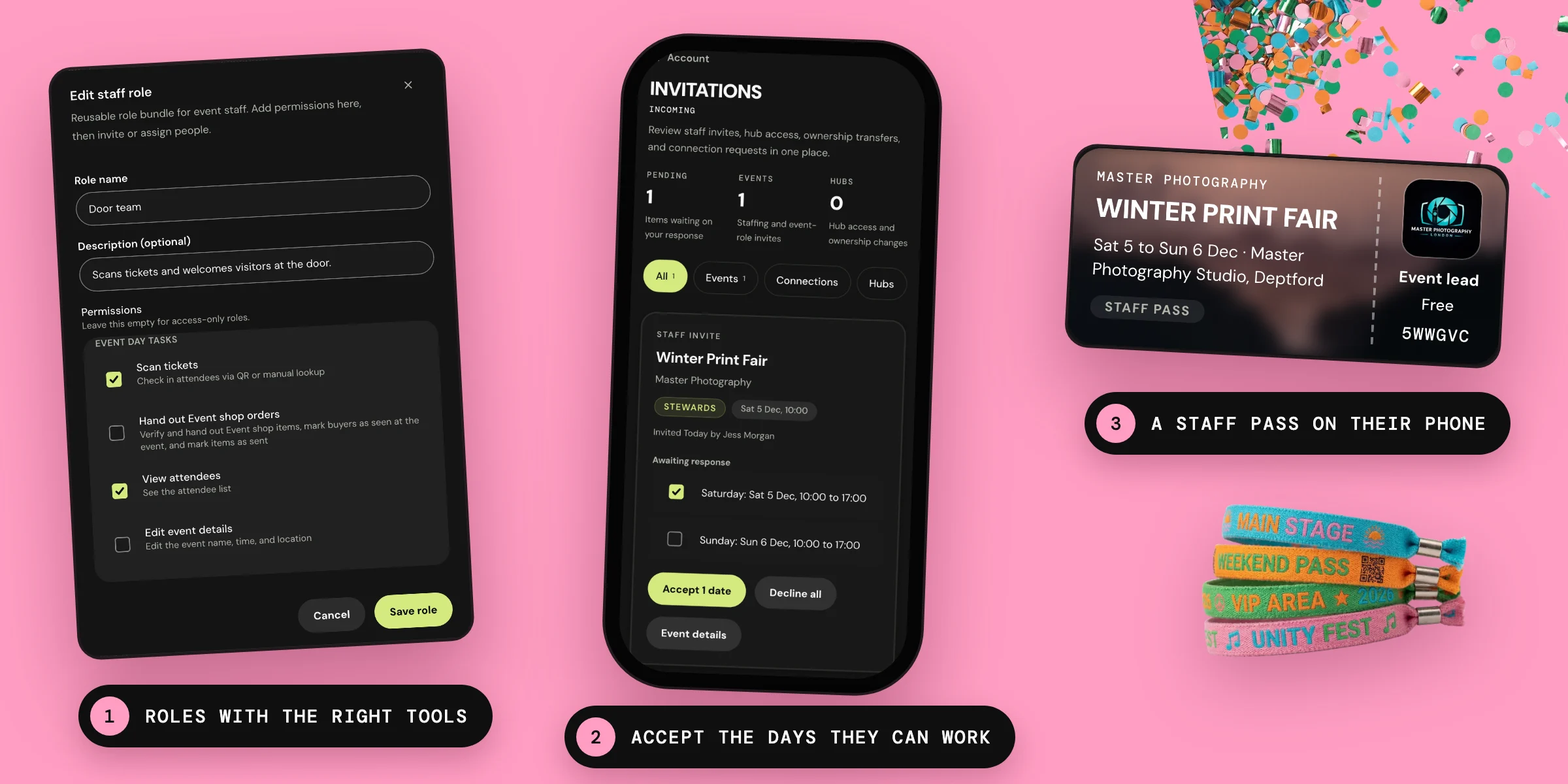
- Create tailored job roles for your event. These roles are stored in your hub and can be reused at future events.
- Enable each staff role to scan tickets, access event data, change event settings, log and manage incidents as required.
- Invite people to be your event staff from your membership list or via email.
- Track who has accepted and rejected each role from your admin dashboard.
- Set up staff-only chat channels for all work communications before, during and after the event.
- Track your staff arrivals at the event as their tickets are scanned.
- If you update event details your staff stay in the loop and the tools they use draw on current information.

Limits
Staff tickets can’t be transferred, so people can’t swap shifts with colleagues without your knowledge.
Our promise
We simplify your staff management by bringing the permissions needed for each role into your event toolkit on Hubbaly. All drawing on current event data and community membership lists. You stay flexible, informed and in control no matter the scale of your event.
Questions
If I offer staff work over a number of days on a multi-day event can they indicate which days they can work?
Yes. Each event time period is a separate offer that can be accepted or rejected.
Can I give one person on my security team extra permissions?
Yes. As well as the role’s standard settings, you can select additional event permissions for anyone you choose.
Is a hub manager the same as an event manager?
No. A hub manager has standard hub permissions to create and edit events across the hub. If you want to create an event manager or coordinator role who will only be able to edit a specific event you can do so in event admin.
I allow my performers to bring two guests each to my events. Should I give them staff tickets?
No. Staff tickets are for people working at the event in question. If you want to offer anyone free tickets, send them a complimentary ticket.
What happens when a role changes?
Everyone assigned to that role has their permissions updated immediately.